Contents (14 sections)
With the rapid advancement of technology, integrating smart home devices has become an essential part of modern living. These devices not only enhance convenience but also improve energy efficiency and security within the home. This guide will take you through a step-by-step approach to effectively integrate these devices, ensuring a seamless living experience that aligns with your lifestyle.
1. Understanding Smart Home Devices
Smart home devices refer to a broad category of products connected to the internet, enabling users to control them remotely via smartphone apps or voice commands. These can include smart lights, thermostats, security cameras, and appliances, making everyday tasks more convenient and efficient. By 2026, studies have shown that over 50% of UK households have at least one smart device installed, indicating a significant shift towards smart living.
Incorporating these devices into your home not only adds a layer of convenience but also can manage energy use more effectively. For example, smart thermostats can learn your schedule and adjust heating or cooling accordingly, potentially leading to savings on energy bills. As you embark on integrating smart home devices, consider your household's specific needs to select systems that complement your lifestyle.
2. Preparing for Integration
Before diving into the integration process, it’s essential to assess your existing home infrastructure. Here are the key steps to prepare:
- Check Your Wi-Fi Coverage: Smart devices require strong internet connectivity. Ensure your home Wi-Fi covers all areas where you plan to set up devices. If not, consider using extenders for dead zones.
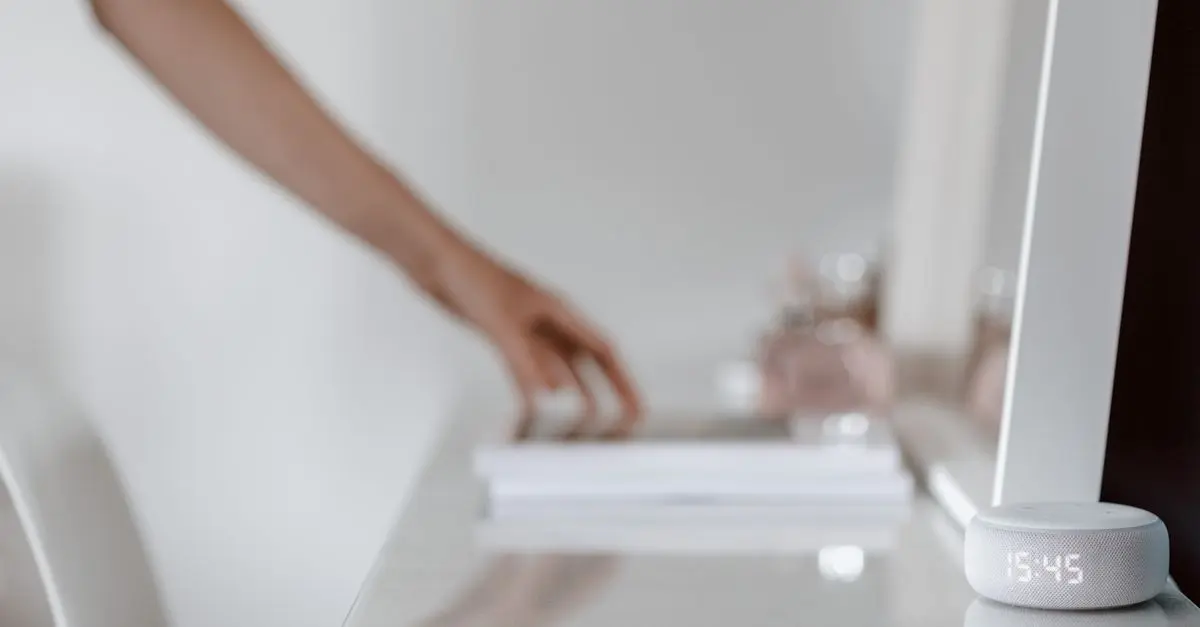
- Choose a Central Hub: Depending on the devices you choose, you may require a central hub. This platform connects your various devices for streamlined control. Options include hubs like Amazon Echo or Google Nest.
- Ensure Compatibility: Research the devices for compatibility with existing systems. Look for products that support open standards such as Matter, which facilitates a smoother integration process across various brands.
- Plan Your Layout: Visualise where you want to place smart devices within your home, keeping in mind their functions and the proximity to power sources.
These preparation steps will establish a strong foundation for effective integration, minimising future complications during setup.


Nedis Smartlife Zigbee Garage Door Switch, Compact Built-In Module for Remote Control and Voice Commands, Compatible with Amazon Alexa and Google Home
Boxed2me

3. Step-by-Step Integration Process
Integrating smart home devices involves several crucial steps:
Step 1: Connecting Devices to the Hub
Once your devices are selected and set up, begin by connecting them to the central hub. Follow the specific instructions for each device; typically, this involves entering the device into pairing mode and following prompts in the companion app. Ensure you have the latest versions of all apps to avoid potential compatibility issues.
Step 2: Configuring Settings via Apps
Each device will have unique settings that can be adjusted through the applicable app. After installing your device, take time to configure settings such as schedules, automation, and routines. For example, you might set your smart lights to dim during movie time or your thermostat to adjust at night. Save your preferences to enhance functionality.
Step 3: Testing Device Functionality
After setup, run tests to ensure everything operates smoothly. Check voice commands and remote access from your mobile devices. Testing is critical; issues can arise from firmware updates or configuration errors during integration.
Step 4: Creating Automation and Routines
Take advantage of automation features within your hub's app. This could involve scheduling devices to turn off automatically at specific times or setting your security cameras to activate when you leave home. Efficient use of automation significantly enhances convenience and security, streamlining your daily tasks.
Step 5: Continuous Monitoring and Optimisation
Once integrated, continuously monitor device performance and adapt settings as necessary. Regularly checking for software updates is crucial for optimal function. Additionally, as technology continues to evolve, new features will likely enhance your smart home experience. Stay informed about product updates to maximise your smart living setup.
4. Common Pitfalls to Avoid
While integrating smart devices can be beneficial, there are potential pitfalls to be mindful of:
- Neglecting Security: Always ensure your network is secure by using strong passwords and updating device firmware regularly.
- Choosing Incompatible Devices: Research devices beforehand to ensure they can communicate effectively with each other.
- Over-complicating Automations: Start with simple routines, and gradually introduce complex automation as you become comfortable with the technology.
By being aware of these common issues, you can mitigate potential challenges during the integration process.
5. Checklist for Successful Integration
- [ ] Assess Wi-Fi coverage in your home.
- [ ] Choose a compatible central hub for device integration.
- [ ] Plan device placements for optimal function.
- [ ] Download necessary apps and updates before setup.
- [ ] Test each device thoroughly post-setup.
- [ ] Create, review, and adjust automation routines as needed.
- [ ] Protect your network and devices from security threats.
6. Conclusion
Integrating smart home devices can significantly enhance your living experience, offering convenience, efficiency, and security. By following this step-by-step guide, you can ensure a seamless integration process that complements your lifestyle, making everyday tasks easier and more enjoyable. Explore our curated selection of smart home products to find the perfect pairings for your setup.
Glossary
| Term | Definition |
|---|---|
| Smart Hub | A central device that connects and controls multiple smart devices in a home. |
| Automation | The use of technology to control devices and systems with minimal human intervention. |
| Smart Thermostat | A device that automatically adjusts heating and cooling settings based on user preferences and habits. |
> 📺 For further insights: Explore top smart home integrations on YouTube. Search:
how to connect smart home devices.
🧠 Quick Quiz: Which device can help manage energy consumption effectively?
- A) Smart light bulb
- B) Traditional heater
- C) Non-smart appliance
Answer: A — Smart light bulbs can adjust brightness and schedules to save energy.
📺 Pour aller plus loin : how to connect smart home devices sur YouTube


Recommended products
Selected by our experts